YouTube Thumbnail Preview Tool
Upload a thumbnail and see how it holds up in a simulated feed on desktop and mobile, next to other videos and at the small sizes where viewers decide. Your image never leaves your browser.
Preview your thumbnail
Drop your thumbnail here, paste it, or choose a file
JPG, PNG, WebP or GIF up to 50 MB. Processed in your browser and never uploaded.
Showing a sample thumbnail so you can explore the preview. Your upload replaces it.
Desktop feed preview, dark theme.
 12:48
I Beat It in 7 Minutes and Set a New Record
Example channel
Illustrative sample
 12:48
Your video title goes here so you can check how it reads
Your Channel
Preview only
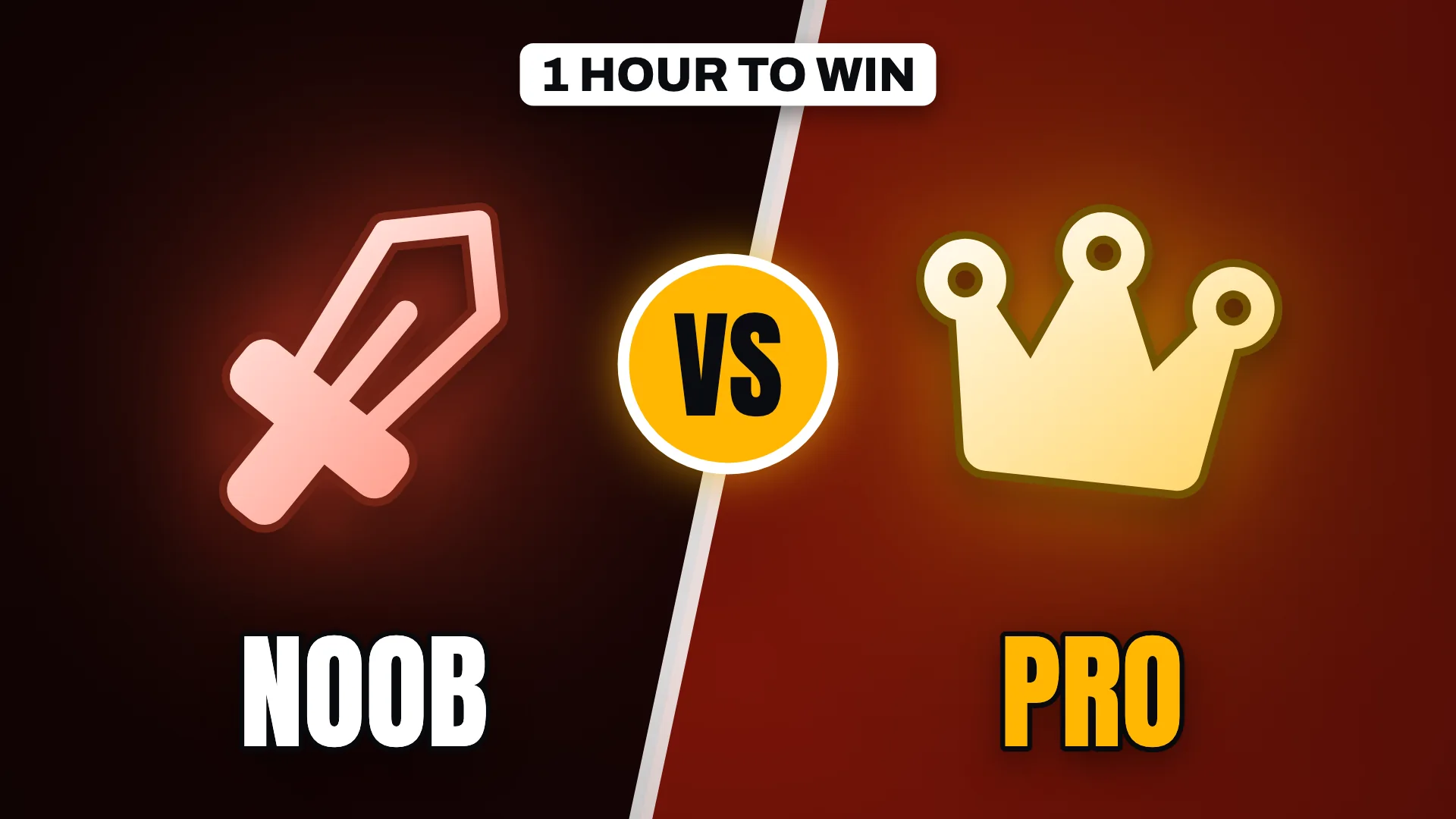 8:03
Noob vs Pro: One Hour to Win
Example channel
Illustrative sample
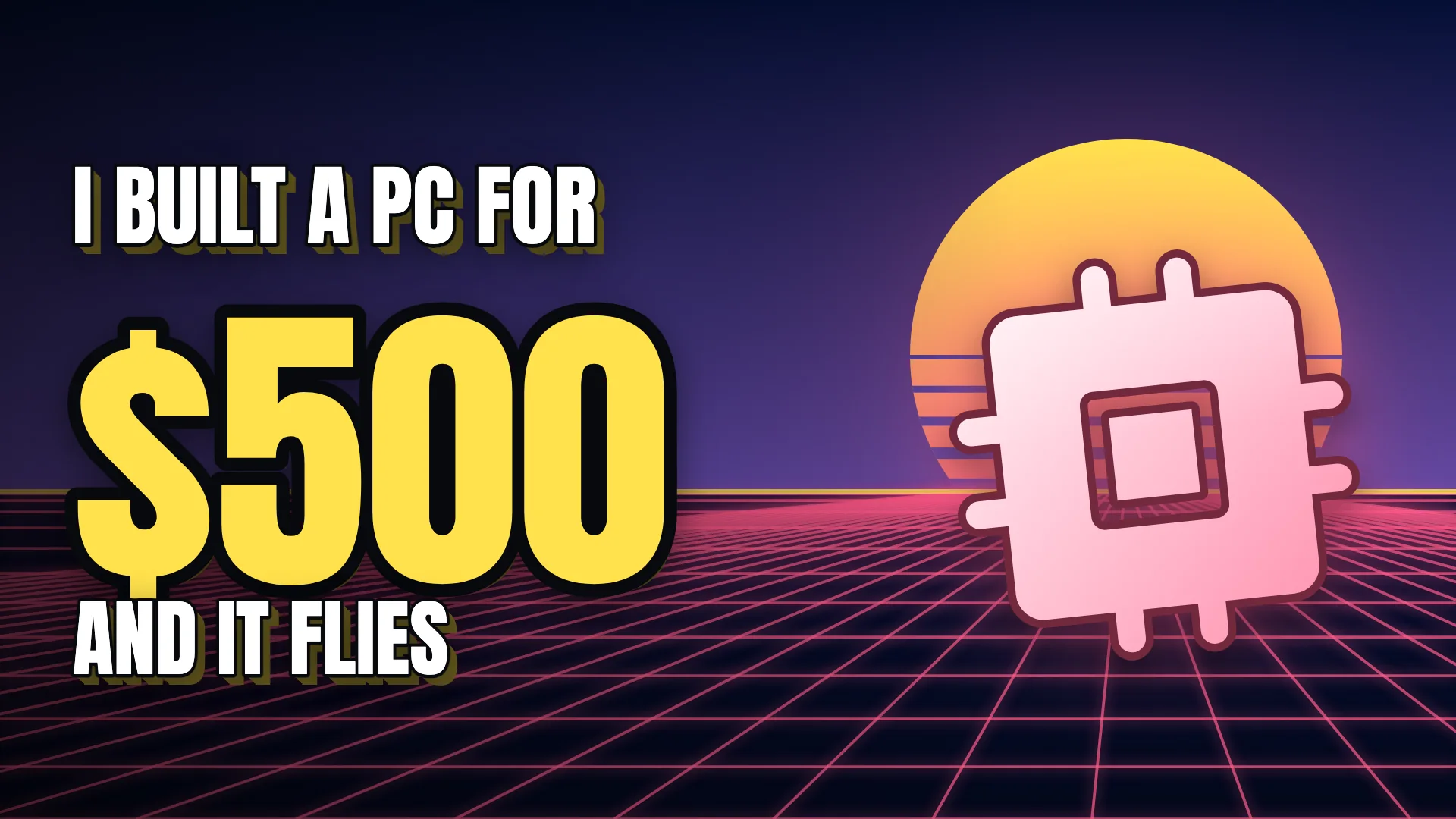 21:15
I Built a Gaming PC for $500 and It Flies
Example channel
Illustrative sample
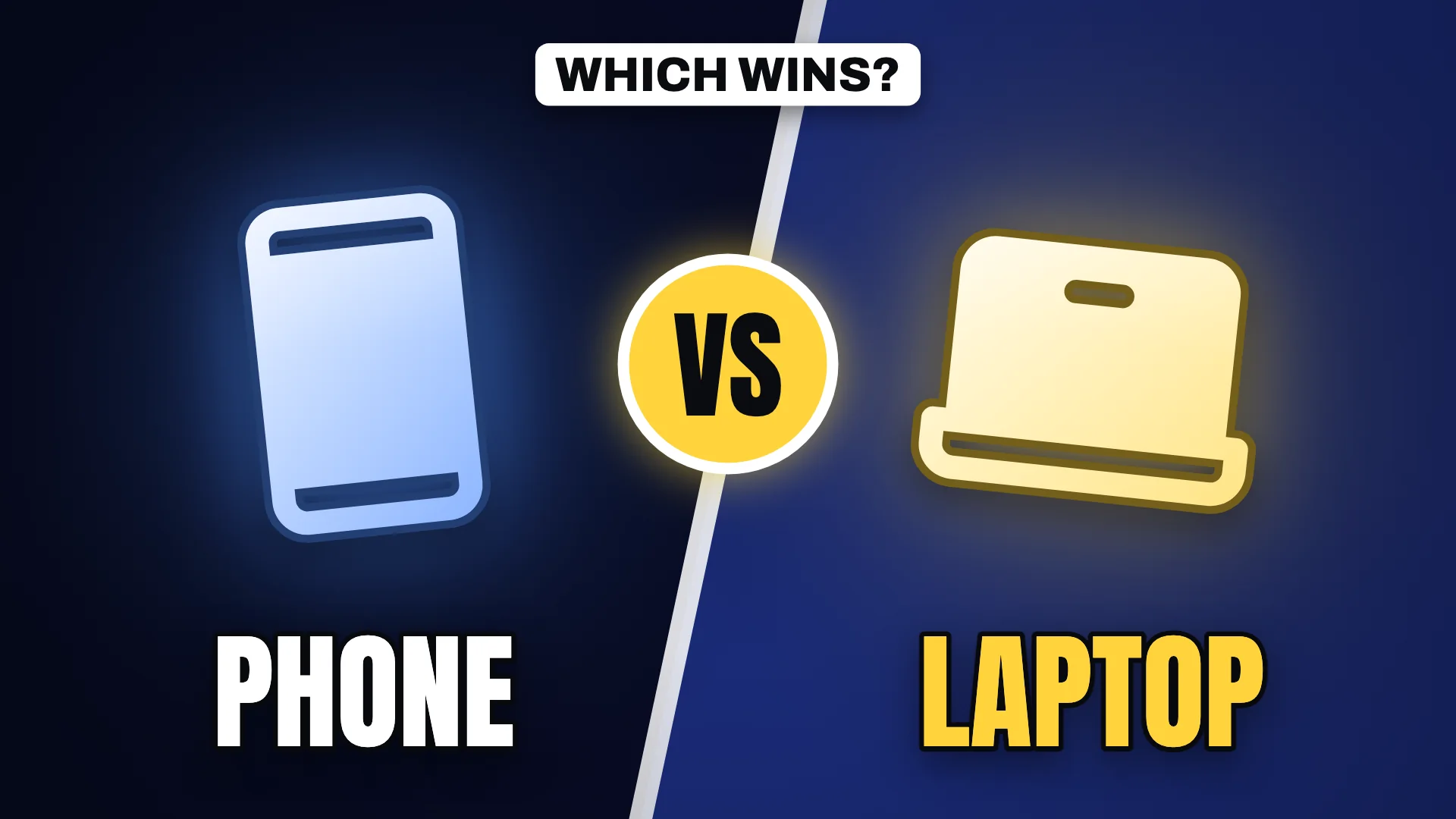 5:42
Can a Phone Replace a Laptop for a Week?
Example channel
Illustrative sample
 16:09
How I Made My First $10K Month Online
Example channel
Illustrative sample
Up next
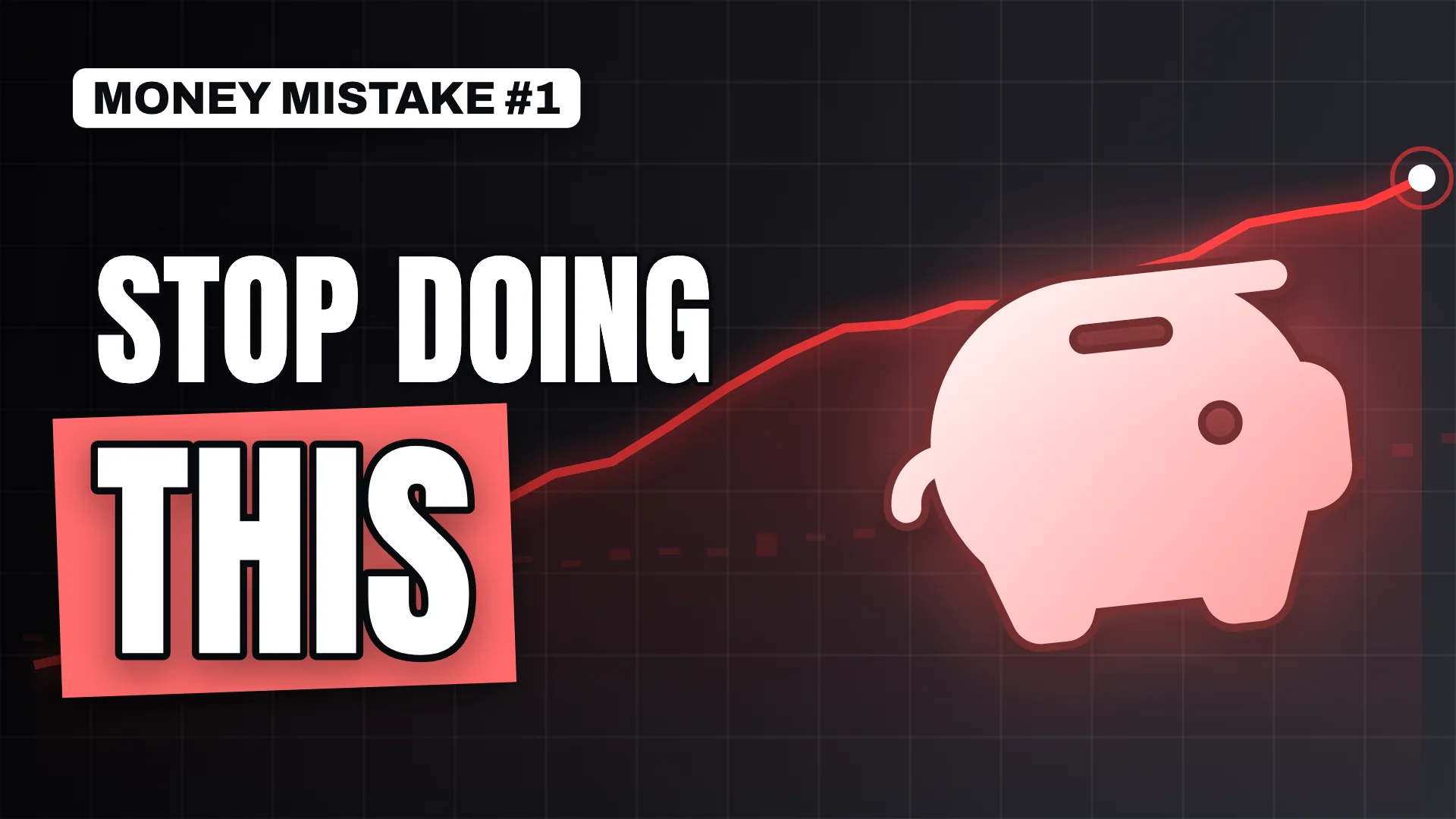 10:31
Stop Doing This With Your Money
Example channel
Illustrative sample
12:48Your video title goes here so you can check how it reads
Your Channel
Preview only
21:15I Built a Gaming PC for $500 and It Flies
Example channel
Illustrative sample
Simulated layout for design checks. Not connected to YouTube and shows no real data.
Compare display sizes
Approximate widths in CSS pixels. Real sizes vary by screen and layout.
12:4812:4812:4812:4812:48Five things to check in the preview
- The headline reads at the smallest size. Look at the 168 px version. If you have to lean in, cut words or make them larger.
- There is one clear focal point. A face, an object or a number should win immediately, not compete with three other elements.
- Contrast survives grayscale. Turn on Grayscale. Text and subject should still separate from the background.
- The bottom-right corner is clear. Keep the duration badge on and make sure it does not cover anything important.
- It stands out next to its neighbours. Compare it with the surrounding thumbnails. If it blends in, change the palette or simplify the background.
How this tool works
The preview arranges your image in layouts that approximate a video feed, an up-next sidebar and a phone screen. The surrounding videos are illustrative samples made by Thumio, not real channels, and the tool shows no real views, ratings or predictions.
The upload checks compare your file with YouTube’s published requirements: a 16:9 aspect ratio, at least 640 pixels wide, JPG or PNG, and the 2 MB mobile and 50 MB desktop limits. See the full thumbnail size guide for details.
Need a design to test? Make one in the free thumbnail maker and send it here with one click.
Preview tool FAQ
Does the preview tool upload my thumbnail?
No. The image is read by your browser and shown from your device's memory. It is never sent to a server, and it is released when you remove it or close the tab.
Is this exactly how YouTube will show my thumbnail?
No. It is a simulated layout built to approximate common feed sizes and placements. YouTube's real interface changes often and varies by device, so treat the preview as a design check, not a guarantee.
How small are thumbnails shown on YouTube?
It varies by layout and screen. In the up-next sidebar on desktop, thumbnails are roughly 168 pixels wide, and on phones they can fill the screen width. Designing for the smallest common size keeps your thumbnail readable everywhere.
Why test a thumbnail in grayscale?
Grayscale removes colour and shows whether the design still has light-dark contrast. If the headline disappears in grayscale, it relies on colour alone and will be harder to read for many viewers.
What is the squint test?
Squinting, or blurring the image slightly, hides fine detail. What remains is the main shape and the largest text, which is roughly what a scrolling viewer takes in at a glance.
Can I preview a design from the Thumio maker?
Yes. Click Preview in a feed in the maker and your current design opens here automatically.